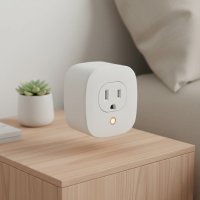
Is your Kasa smart plug suddenly unresponsive, or are you moving it to a new Wi-Fi network? These clever devices are usually very reliable, but like any tech, they sometimes need a fresh start. Learning the process for resetting Kasa smart plug devices is a fundamental skill for any smart home owner. It’s a simple troubleshooting step that can solve a host of connectivity and performance issues, getting your home automation back on track in minutes. As the experts at Kjooz, we’ve guided thousands of users through this process, and now we’re here to help you.
This comprehensive guide will walk you through exactly when and how to reset your device, covering both a gentle reboot and a full factory reset. For expert smart home reviews on this site.
Why You Might Need to Reset Your Kasa Smart Plug
Before we dive into the “how,” let’s understand the “why.” A reset isn’t always the first solution, but it’s the right one in several common scenarios. Knowing when to perform a reset can save you time and frustration.
- Connectivity Problems: The most common reason for a reset is when the plug consistently fails to connect to your Wi-Fi network. This might manifest as the plug appearing “Offline” or “Unreachable” in the Kasa Smart app.
- Changing Your Wi-Fi Network: If you’ve recently upgraded your router or changed your Wi-Fi network name (SSID) or password, your Kasa plug won’t be able to connect. It needs to be reset to forget the old network details so you can connect it to the new one.
- Unresponsive Behavior: Is the plug not turning on or off via the app or voice commands, even though it appears online? A reset can often resolve these software glitches.
- Selling or Giving Away the Device: If you plan to give your smart plug to someone else, you must perform a factory reset. This erases all your personal settings, schedules, and Wi-Fi credentials, protecting your privacy and allowing the new owner to set it up as their own.
- General Troubleshooting: Sometimes, a device just acts strangely without a clear cause. A reset is a universal troubleshooting step that can clear up underlying firmware issues.
Before You Reset: The Power Cycle Trick
Hold on for just a moment. A full factory reset erases all your custom settings, including schedules and timers. Before taking that step, try a simple “power cycle,” which is essentially a soft reboot.
“I always advise users to try a power cycle first,” notes David Chen, a senior smart home technician at Kjooz. “It’s non-destructive and resolves over 50% of basic connectivity issues. Simply unplug the Kasa smart plug from the wall outlet, wait for about 10-15 seconds, and then plug it back in. Give it a minute or two to reconnect to your network and see if the issue is resolved.”
If the power cycle doesn’t work, it’s time to proceed with a more definitive reset.
Understanding the Two Types of Kasa Plug Resets
Kasa smart plugs have two distinct types of resets. It’s crucial to know the difference so you can choose the right one for your situation.
The Soft Reset (Reboot)
|
Our Picks for the Best Smart Plug in 2026
As an Amazon Associate I earn from qualifying purchases.
|
||
| Num | Product | Action |
|---|---|---|
| 1 | Kasa Smart Plug HS103P4, Smart Home Wi-Fi Outlet Works with Alexa, Echo, Google Home & IFTTT, No Hub Required, Remote Control, 15 Amp, UL Certified, 4-Pack, White |

|
| 2 | GHome Smart Plug, WiFi Smart Plugs Work with Alexa and Google Home, Smart Outlet Timer with APP Remote Control, 2.4GHz Wi-Fi Only, No Hub Required, ETL FCC Listed |
|
| 3 | Legrand Radiant® Wi-Fi Matter Smart Plug Matter Hub Required 15A, Easy Setup, Enhanced Compatibility with Apple HomeKit, Google Home, Alexa & SmartThings, Easy Wi-Fi Connectivity w/ Matter (1 Pack) |
|
| 4 | EIGHTREE Smart Plug 2025 Upgrade to 15A, Bluetooth & Wi-Fi Outlet Plug Dual Connection, Voice Control, Remote Control Outlet Timer Indoor, Smart Plugs That Work with Alexa & Google, 2.4GHz Wi-Fi Only |
|
| 5 | Kasa Smart Plug Mini 15A, Apple HomeKit Supported, Smart Outlet Works with Siri, Alexa & Google Home, UL Certified, App Control, Scheduling, Timer, 2.4G WiFi Only, 4 Count (Pack of 1) (EP25P4), White |
|
| 6 | Linkind Matter Smart Plug, Work with Apple Home, Siri, Alexa, Google, SmartThings, Smart Home Smart Outlet Timer 15A/1800W, APP Remote Control & Schedule, ETL & FCC Certified, 2.4G Wi-Fi Only, 4 Pack |
|
| 7 | EIGHTREE Smart Plug, Smart Home WiFi Outlet Works with Alexa & Google Home, Smart Socket with Remote Control & Timer Function, 2.4GHz WiFi Only, 4 Packs |
|
| 8 | Kasa Smart Plug Ultra Mini 15A, Smart Home Wi-Fi Outlet Works with Alexa, Google Home & IFTTT, No Hub Required, UL Certified, 2.4G WiFi Only, 2 Count (Pack of 1)(EP10P2) , White |
|
| 9 | Govee Smart Plug, WiFi Plugs Work with Alexa & Google Assistant, Smart Outlet with Timer & Group Controller, WiFi Outlet for Home, No Hub Required, ETL & FCC Certified, 2.4G WiFi Only, 4 Pack |
|
| 10 | Kasa Smart Plug HS103P2, Smart Home Wi-Fi Outlet Works with Alexa, Echo, Google Home & IFTTT, No Hub Required, Remote Control,15 Amp,UL Certified, (Pack of 2) White |
|
A soft reset is essentially a forced restart of the plug’s operating system without deleting your saved settings. It’s useful for resolving temporary glitches or forcing the device to re-establish its Wi-Fi connection.
- When to Use: When the plug is temporarily unresponsive but was previously working fine.
- How to Do It: On most Kasa models, you press and hold the power or settings button for about 5 seconds. The Wi-Fi LED light will typically start blinking amber and green, indicating it’s in setup mode, but it will still retain its previous settings once reconnected.
The Factory Reset (Hard Reset)
This is the one that wipes the slate clean. A factory reset, or hard reset, erases all custom configurations from the device and returns it to its original, out-of-the-box state.
- When to Use: When changing Wi-Fi networks, selling the device, or when a soft reset fails to resolve a persistent problem.
- How to Do It: You press and hold the power or settings button for about 10 seconds. The change in the Wi-Fi LED’s blinking pattern will confirm the reset. After a factory reset, you will need to go through the entire setup process again in the Kasa app.
Step-by-Step Guide to Factory Resetting Your Kasa Smart Plug
Here is the most common method for performing a hard factory reset on the majority of Kasa smart plug models, including popular ones like the KP125 and HS103.
- Keep the Plug Powered On: Ensure your Kasa smart plug is plugged into a live electrical outlet.
- Locate the Reset/Settings Button: Find the physical button on the side of the plug. On some models, it’s the power button itself; on others, it’s a smaller button often marked with a gear or reset symbol.
- Press and Hold: Press and hold this button down firmly. Do not release it yet.
- Watch the Wi-Fi LED: Keep your eye on the small Wi-Fi indicator light on the plug. Continue holding the button. After about 5 seconds, the light will likely start blinking amber and green. This is the soft reset mode, so don’t let go yet!
- Confirm the Factory Reset: Continue holding the button for a total of about 10 seconds. The Wi-Fi LED will change and begin to blink a solid amber (or sometimes just green on older models) rapidly. This rapid amber blinking is the signal that the plug has been successfully factory reset.
- Release the Button: You can now let go. The plug is now in its default setup mode, ready to be configured from scratch.
The plug will now broadcast its own temporary setup Wi-Fi network, waiting for you to connect it via the Kasa Smart app.
What to Do After Resetting Your Plug
Once the process of resetting Kasa smart plug is complete, it’s effectively a “new” device. It will no longer be associated with your Kasa account or your Wi-Fi network. You must add it back.
- Open the Kasa Smart app on your smartphone or tablet.
- Tap the
+(plus) icon, usually in the top-right corner. - Select “Device” and then “Smart Plugs.”
- Follow the on-screen instructions in the app. It will guide you to connect to the plug’s temporary Wi-Fi network and then provide your home Wi-Fi credentials to get it back online.
- Once added, you can rename the plug, assign it to a room, and re-create any schedules or scenes you were using before.
Frequently Asked Questions (FAQ)
How do I know if my Kasa plug reset was successful?
The key indicator is the Wi-Fi LED light. After a successful factory reset, the light should be blinking rapidly, usually amber. This signifies it’s in setup mode and ready to be paired with the Kasa app.
Will resetting my Kasa plug delete my schedules in the app?
Yes, a factory reset deletes all settings on the plug itself. This includes any schedules, timers, and scenes it was a part of. You will need to reconfigure these settings in the Kasa app after you add the plug back to your account.
Why is my Kasa plug not resetting?
If you’ve followed the steps and the plug isn’t resetting, try these tips. Make sure you are holding the button down long enough (a full 10 seconds). Try a different outlet to rule out power issues. If it still fails, there may be a hardware fault, and you should contact TP-Link support.
Can I reset my Kasa plug remotely?
No, you cannot perform a hard reset remotely. A physical reset requires you to press and hold the button on the device itself for security reasons. You can, however, remove the device from your Kasa app remotely, which will unbind it from your account, but it won’t reset the device’s network settings.
Do I need to reset my plug after a power outage?
No, you should not need to reset your Kasa smart plug after a power outage. Once power is restored, the plug is designed to automatically reconnect to its previously configured Wi-Fi network. If it fails to do so, a simple power cycle (unplugging and replugging) should be your first step.
A Fresh Start for Your Smart Home
Mastering the skill of resetting Kasa smart plug devices is a simple yet powerful way to troubleshoot issues and maintain a healthy, responsive smart home. Whether you’re fixing a stubborn connection or preparing a device for a new owner, this straightforward process ensures your plug works exactly as intended. By following these steps, you can confidently manage your Kasa devices and enjoy the full convenience of your automated home. Now, give it a try and see how easy it is to get your smart plug back in perfect working order.
Smart home that does not lock you in
Free PDF — protocol compatibility matrix for 30 hubs and devices.